


Gamers GLTool with Game Tuner
Trilokia Inc.
Gamers GLTool with Game Tuner is the kind of Android utility I open when a game feels close to running well but still needs a little attention. Rather than being a game itself, it belongs to the libraries and demo side of the app world, with a practical focus on adjusting graphics-related options for gaming. I found it most useful as a tuning companion: it gives me a place to review available settings, make a deliberate change, and then return to the game to see whether the result is actually better.
That distinction matters. A graphics optimizer cannot turn every phone into a high-end gaming device, and it cannot fix a game that is poorly optimized at its core. What it can do is help you approach performance more methodically instead of changing random options and hoping for an improvement. The best results come from treating it as a repeatable setup tool, not a magic performance switch.
How I build a reliable baseline before changing anything
My first step with Gamers GLTool with Game Tuner is deliberately unexciting: I start with the game’s normal settings and play long enough to identify the real problem. Is the image too soft? Does movement become uneven during busy scenes? Does the phone become uncomfortable after a longer session? These are different problems, and they should not all be answered by pushing graphics quality upward or downward.
Once I know what bothers me, I use the app to make one meaningful adjustment at a time. This is more useful than applying every available option together because it leaves me with a clear cause-and-effect relationship. If a change helps, I keep it. If it makes the picture worse or introduces instability, I can undo that decision without wondering which of several settings caused the trouble.
I also recommend writing down a simple personal baseline, even if it is only a note on the phone. Record the game’s original graphics choice, the change you made, and how the phone felt after a normal session. This small habit is especially valuable when you experiment with several games. A setting that feels comfortable in a slower title may be too demanding in a visually busy one, while a compromise that looks acceptable in one game may make another appear unnecessarily dull.
Related News

Instagram Is No Longer a Photo App. It Is an Attention Engine

Microsoft Teams Mobile: When Collaboration Becomes Navigation

How the NFL App Adapts to Android and iOS Updates

Temu: Elevate Your Shopping Experience to Billionaire Status

Why Traffic Rider Works Best as a Precision Reflex Game

How Google’s Find Hub Transforms Everyday Searches
The app is free, and its Everyone age rating makes it approachable for a broad audience. Trilokia Inc. has positioned it as a general-purpose gaming utility rather than a specialist tool for one particular title. That broad approach is convenient, but it also means the quality of the result depends heavily on the game, the phone, and the options that each game actually exposes.
What I check before trusting a change
I look at three things after every adjustment: visual clarity, consistency during play, and comfort over time. A sharper image is not automatically an improvement if the game begins to stutter. Likewise, a smoother opening minute does not prove that the setup is good if the phone slows down later in the session. I prefer a stable compromise over a spectacular first impression that quickly becomes uncomfortable.
Another useful check is whether the game itself already provides the setting I need. If the title has clear graphics and frame-rate controls, those built-in controls are usually the safest starting point. Gamers GLTool becomes more useful when I want a more organized tuning workflow or when the game’s own menu is limited. I do not use it simply because a separate utility exists; I use it when it gives me a practical way to make a decision I could not make as clearly inside the game.
Gallery
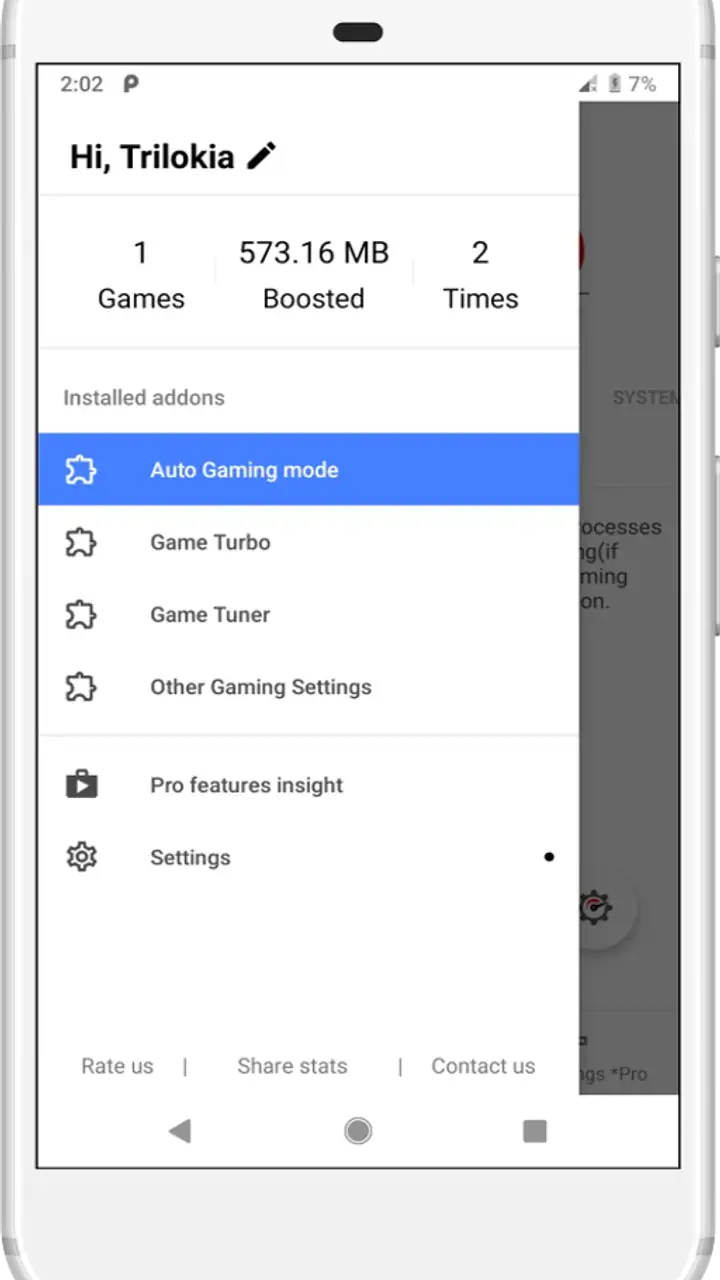
This approach also prevents a common mistake: confusing a lower visual load with better overall performance. Reducing detail can make a game easier to run, but it may not solve network delays, game-server issues, background activity, or heat-related slowdowns. The app is focused on graphics tuning, so I judge it on that basis rather than expecting it to repair every source of lag.
Settings worth checking without chasing perfect graphics
The first settings I consider are the ones that change the balance between image quality and workload. I begin conservatively, because the goal is not to make the display look as impressive as possible in a screenshot. The goal is to keep play readable and consistent. If lowering a demanding visual option makes movement steadier without making text or important objects difficult to see, that is a worthwhile trade.
Resolution-related choices deserve particular care. A lower rendering resolution can reduce the amount of work the phone has to do, but the result may look soft, especially on a compact display. I treat this as a situational tool: it makes more sense when performance is the main problem than when the game already looks clear and runs comfortably. If the image becomes tiring to read, I reverse the change rather than accepting blur as the price of optimization.
Frame-rate choices require the same balanced thinking. A higher target can make controls feel more immediate when the device can sustain it, but an unstable high target can feel worse than a lower, steadier one. I would rather choose the modest option that remains consistent during a full session than select the most ambitious setting because it sounds better. This is one of the most important lessons for new users: consistency usually matters more than the highest number available.
Texture and detail adjustments can be useful when the game offers several levels, but they are not interchangeable. Reducing texture quality may save resources while preserving the general shape of the scene; reducing other details may change the atmosphere more noticeably. I compare the result in the places where I actually play, not only in a quiet menu or opening area.
Some users will be tempted to use a preset and leave everything untouched. Presets can be a convenient starting point, but I see them as a first draft. A preset may be reasonable for a broad range of phones while still being a poor fit for your particular display, battery condition, or preferred style of play. I normally apply the least aggressive option first, test it, and then decide whether the benefit is large enough to justify another compromise.
A practical test for everyday gaming
Imagine that I am preparing a game for a commute. I want it to remain comfortable during a short session, but I also do not want to spend the whole trip reopening menus. I choose a conservative graphics setup, launch the game, and test a representative section rather than judging it from the title screen. If the controls feel steady and the image remains readable, I keep that profile as my everyday choice. If it looks good but becomes uneven when the action gets busy, I lower the demanding option instead of repeatedly restarting the game.
For a longer evening session, I use a different standard. I pay more attention to sustained comfort and whether the phone remains responsive after the initial excitement has passed. This is where a visually impressive configuration may lose its appeal. A slightly simpler image that stays pleasant for the entire session is more valuable to me than a short-lived improvement during the first few minutes.
Gamers GLTool is also useful for users who enjoy comparing configurations. I can test a quality-focused setup and a performance-focused setup on separate occasions, then decide based on actual play rather than assumptions. The important limitation is that the app cannot guarantee that a particular setting will be accepted or behave identically in every game. The title’s own graphics engine remains part of the equation.
Faster patterns that make tuning less frustrating
Experienced users usually save time by avoiding constant experimentation. My preferred pattern is simple: identify one goal, adjust one group of related settings, test the same type of gameplay, and keep only the change that produces a noticeable benefit. This prevents the app from becoming another source of distraction. Tuning should shorten the path to enjoyable play, not replace play altogether.
I also separate “quality sessions” from “performance sessions.” For a quiet game or a title I play mainly for its atmosphere, I may accept a richer image. For a competitive or fast-moving game, I prioritize clear response and stable movement. This is not a permanent judgment about the game; it is a decision about what matters in that particular session.
A useful shortcut is to create a personal rule for when to stop adjusting. For example, once the game is readable, controls feel consistent, and the phone remains comfortable through a normal session, I stop. Continuing to chase tiny visual improvements often produces more inconvenience than benefit. This stopping rule is one of the less obvious advantages of using a tuner thoughtfully: it turns vague tweaking into a repeatable routine.
I avoid changing several games at once. I finish testing one title, note what worked, and then move to the next. This keeps my expectations realistic. A successful setup in one game is evidence about my preferences, not proof that the same configuration will suit every title. Different engines, art styles, and built-in menus can react very differently to similar adjustments.
When the ordinary game menu is the better choice
There are situations where I would skip the utility. If a game already has well-labeled graphics controls, clear presets, and a stable result, its own menu is simpler and easier to troubleshoot. The built-in options are designed around that title, while an external tuner may introduce another layer of decisions without adding much value.
I would also avoid unnecessary tuning when the real issue is connection quality or game-server responsiveness. A smoother image cannot remove a delayed online action, and a lower visual setting will not repair a weak network. Similarly, if a phone is already struggling because many other tasks are active, the more sensible first move may be to close those tasks and let the device return to a normal state before judging the graphics setup.
This is where Gamers GLTool compares interestingly with ordinary alternatives in the same category. A game’s built-in tools are usually narrower but more predictable. A general device-maintenance app may offer broader system advice but less attention to game graphics. This app sits between those approaches: it is more focused than a general cleaner and more flexible in workflow than a single game menu, but it cannot replace either one in every situation.
Advanced limits that experienced users should understand
The most important limit is that tuning cannot create hardware capacity that is not there. If a phone cannot sustain a demanding visual load, changing a setting may improve the experience, but it will not transform the device into a different class of hardware. I treat every adjustment as a compromise among detail, responsiveness, and comfort.
There is also a risk of over-optimizing. When I reduce too many visual elements, the game may become easier to run but harder to enjoy. Important objects can lose contrast, distant details can become unclear, and the overall scene can feel flat. The best setup is not necessarily the one with the lowest workload; it is the one that preserves the information I need while removing waste I do not notice.
Another limitation is repeatability across updates. A game can change its graphics behavior after its own update, so a setup that worked previously may need to be checked again. I do not assume that a saved habit remains perfect forever. If the game suddenly feels different, I return to the baseline rather than immediately blaming the tuner or making a dramatic adjustment.
Users should also be cautious with any option whose effect they do not understand. I prefer a small, reversible experiment to a full collection of aggressive changes. If the result is worse, I restore the earlier configuration and test again. This is especially important for people who are new to graphics tools: confidence should come from observing results, not from selecting every advanced-looking control.
The current version is 0.0.7, and the app has been available since May 17, 2019. Those details give me useful context when setting expectations: I approach it as a focused utility that should be judged by how well its available workflow fits my device and games, not by assumptions that it will behave like a modern all-in-one gaming suite. It remains free, which makes experimentation easier, but free access does not remove the need for careful testing.
Who gets the most from it
I think the app suits Android players who enjoy taking control of their setup and who are willing to test changes patiently. It is particularly appealing if a game is almost comfortable but needs a better balance between clarity and smoothness, or if you regularly move between titles with different demands. It can also help a user who wants a consistent routine rather than repeatedly guessing inside a game’s menu.
I would recommend skipping it if you want a single button that guarantees faster performance, if your main problem is online latency, or if you dislike comparing settings. It is not a substitute for a capable device, a stable connection, or sensible game-side options. Users who prefer everything to remain inside the game may find the extra step unnecessary.
The app has passed the five-million-install mark and holds a 4.5 average from roughly forty-five thousand ratings, with hundreds of written reviews. That level of adoption suggests it has found a substantial audience, but popularity does not remove the device-specific nature of graphics tuning. I still judge it by whether it improves my own games without making them less readable or less comfortable.
My verdict after making tuning a habit
Gamers GLTool with Game Tuner works best when I use it with restraint. Its real value is not a dramatic promise of instant speed; it is the structure it gives to a process that is otherwise easy to handle badly. I can begin with a baseline, change a relevant setting, test a familiar type of gameplay, and keep a configuration that matches the way I actually play.
The strongest users will combine the app with habits rather than relying on presets alone. They will distinguish graphics problems from connection problems, prefer stable performance over impressive peaks, and remember that every game may need its own compromise. They will also know when to stop tuning and simply play.
For me, that makes this free utility worth trying when a game needs more attention than its normal menu provides. It is not the right answer for every slowdown, and it cannot overcome the limits of a phone or a game engine. But for someone who wants a more deliberate way to balance visual quality and playability, Trilokia Inc.’s tool offers a practical starting point. I would recommend it to curious Android gamers who enjoy repeatable setups, while advising everyone else to begin with the game’s own controls and use this app only when it solves a specific, observable problem.
FAQs for Gamers GLTool with Game Tuner
What is Gamers GLTool with Game Tuner and how does it enhance gaming performance?
Gamers GLTool with Game Tuner is an application designed to optimize your smartphone's gaming performance. It adjusts system settings to reduce lag, increase frame rates, and improve overall gameplay experience. By fine-tuning CPU and GPU settings, it ensures smoother gameplay and can even help conserve battery life while gaming.
Is Gamers GLTool with Game Tuner compatible with all Android devices?
While Gamers GLTool with Game Tuner is designed to work on most Android devices, compatibility can vary based on the device's specifications and software version. It's recommended to check the app's requirements on the Google Play Store to ensure it supports your specific device model and Android version.
Does using Gamers GLTool with Game Tuner require root access on my device?
No, Gamers GLTool with Game Tuner does not require root access to function. The app is designed to work on both rooted and non-rooted devices. However, certain advanced features may only be available for rooted users, providing more customization and optimization options.
Are there any risks associated with using Gamers GLTool with Game Tuner?
Using Gamers GLTool with Game Tuner is generally safe, but as with any system optimization app, there is a small risk of causing instability if settings are improperly adjusted. Users should proceed with caution and ideally back up important data before making significant changes to their device's performance settings.
Does Gamers GLTool with Game Tuner consume a lot of battery power?
Gamers GLTool with Game Tuner is designed to optimize battery usage during gaming. It helps manage resources efficiently, potentially reducing unnecessary power consumption. However, actual battery usage can vary depending on the games being played and the specific settings applied. Regular monitoring is advised to balance performance and battery life.
Pros
- Enhances gaming performance efficiently.
- Customizable game settings for FPS boost.
- Includes features for network optimization.
- User-friendly interface for easy navigation.
- Supports a wide range of Android devices.
Cons
- Contains ads that may interrupt usage.
- Some features require in-app purchases.
- Limited support for older Android versions.
- May drain battery faster with extensive use.
- Occasional compatibility issues with specific games.


